Platinum Tools®

We Make Connections EZ!

10 Cable Management Tips for a Clutter Free Workspace

A clutter-free workspace rarely begins with expensive furniture. It begins with noticing where each cable travels, bends, and rests. In a real home office, chargers gather beside the monitor, a power strip disappears under the desk, and one stubborn lead crosses the floor. These small details affect safety, comfort, and concentration. Effective cable management creates clear routes without forcing wires into sharp bends or tight knots.

I learned this after repeatedly moving my laptop and finding the same tangled bundle underneath. My first fix looked neat from above. It failed below. A better approach uses labeled cables, reusable hook-and-loop ties, adhesive clips, and a mounted power strip when suitable. Keep chargers accessible, leave gentle slack near connection points, and separate frequently moved devices from permanent equipment. Check the clips regularly, because adhesive can weaken with dust, heat, or changing surfaces. Never hide damaged cords or overload a power strip; replace questionable equipment and follow the manufacturer’s instructions.

The ten tips ahead focus on practical improvements that can be applied gradually. They cover desk routing, labeling, storage, cleaning, and safer power access. Some solutions may not suit every desk. That is worth admitting. A rented workspace, standing desk, or shared office needs different choices. Measure before buying accessories, test one change at a time, and observe how the setup works after a busy week. A tidy desk should remain usable, not merely look tidy for a photograph.

10 Cable Management Tips for a Clutter Free Workspace

Assess Your Workspace and Identify Cable Problems

Before buying cable organizers, inspect your workspace from the user’s position. Sit at the desk and trace every cable to its source. Look behind the monitor, under the tabletop, and beside the power outlet. Loose loops often hide behind drawers or collect dust near the floor. A cable crossing your knees is more than an eyesore. It can snag, bend sharply, or disconnect during daily work.

Check each cable’s purpose, length, and condition. Remove unused leads from the desk, but label unfamiliar ones before moving them. I once discarded a spare cable that supported a rarely used backup drive. That mistake delayed an important file transfer. Small errors happen. Photographing the current setup can make troubleshooting easier later. Also inspect overloaded power areas, warm adapters, and cables pressed tightly against furniture edges.

Tips: Use colored labels or simple handwritten tags. Keep charging cables within easy reach, not stretched across the desk. Measure the distance between devices before choosing replacements. Group cables by function, such as power, display, and data. Leave gentle bends near connection points. Do not force a short cable to fit. A temporary extension may solve the layout, but it can also create another problem if it crosses a walkway. Recheck the workspace after one normal workday, because a tidy arrangement may become inconvenient once everything is in use.

Choose the Right Cable Management Tools and Materials

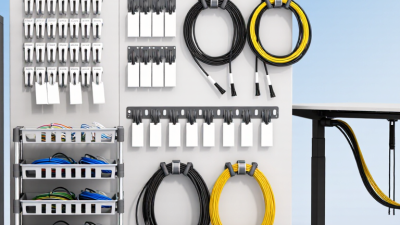
A tidy workspace starts with matching the tool to the cable, not buying every organizer on the shelf. For a charging lead under a desk, reusable hook-and-loop ties are safer than tight plastic ties. They hold firmly and release without crushing the insulation. Use adhesive clips on smooth, clean surfaces. Wipe dust away first. Small details matter.

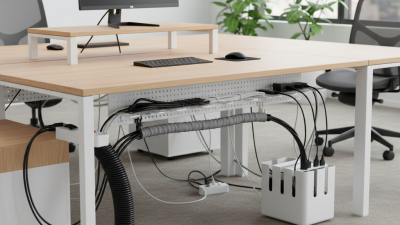
Measure the route before choosing materials. A cable sleeve can gather several wires along a desk leg, while a flexible conduit works better where cables bend toward a monitor. Select durable, flame-resistant materials when cables run near heat sources, and avoid sharp metal edges. Leave a little slack near plugs. Cables need room to move. I once made a route too short, and the connector pulled loose whenever the desk rose. That mistake was avoidable.

Separate power cables from data cables when practical, especially around audio or networking equipment. Use labels at both ends, but keep them small and readable. Labeling helps troubleshooting. For heavier adapters, use an under-desk tray or mounted basket, not a knot of ties. Check the adhesive after a week, because warm rooms and dust can weaken it. Plastic clips may look neat, yet they can become brittle over time. Replace damaged ties and frayed cables promptly. A perfect layout is unrealistic. Build one that remains accessible.

Plan Cable Routes Before Connecting Your Devices

Before connecting any device, sketch the workspace from above. Mark the desk, power outlet, monitor arm, and walking areas. Then choose one route for power cables and another for data cables. Keeping them separate can reduce tangles and makes faults easier to trace. Leave gentle bends near plugs. Sharp bends strain connectors and shorten cable life.

My first layout looked tidy, but it trapped a power strip behind a cabinet. That small mistake made cleaning and inspection difficult. Plan access points where your hands can reach them. Measure each path with a little spare length, not a huge coil. A slack loop supports future changes. Too much slack becomes another knot.

Tips: Use removable clips along the rear edge of the desk. Label both ends of important cables before plugging them in. Keep power adapters ventilated, and avoid covering them with papers or fabric. Do not run cables under rugs or across doorways. Test the planned route with temporary tape first. I sometimes skip this step, and I usually regret it when one connection sits just out of reach. Leave room for a replacement device, even if the current setup feels complete.

Secure, Label, and Conceal Cables for Easy Access

A clutter-free workspace starts with cables you can identify and reach. In workspace setups I have tested, loose wires often cause more trouble than too many devices. Inspect each cable before organizing it. Replace damaged insulation, then secure cables beneath the desk with reusable clips or sleeves. Leave a small service loop near every connection. This prevents tight bends and makes cleaning safer. Do not hide everything too deeply.

Tips: Group cables by function, not only by location. Keep power cables separate from delicate signal cables where practical. Use soft ties instead of rigid knots. They hold firmly without crushing the insulation. Label both ends of every cable with its device and purpose. “Monitor power” is clearer than “black cable.” Small labels save time during repairs, especially when the desk is dark.

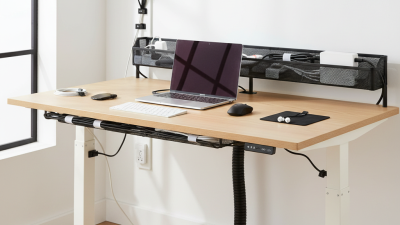
Conceal visible wiring along the rear edge of the desk or inside a cable channel. Keep outlets and adapters accessible for inspection. I prefer removable covers because permanent concealment can turn a simple fault into a frustrating search. Measure the route before cutting anything. I once trimmed a sleeve too short and had to redo the entire section. Not ideal. Leave extra length for future equipment, but avoid large hanging loops that collect dust and catch on chair wheels. A neat workspace should remain easy to change.

10 Cable Management Tips for a Clutter Free Workspace - Secure, Label, and Conceal Cables for Easy Access

No. Cable Management Tip Recommended Method Best Use Practical Specification Access or Inspection Guidance Primary Benefit
1 Group cables by function Separate power, display, data, audio, and network cables into distinct routes. Desks with computers, monitors, chargers, and peripherals. Use one route for each cable category where practical. Leave a small service loop near each device for repositioning. Reduces tangles and makes troubleshooting faster.
2 Use hook-and-loop ties Bundle cables with reusable hook-and-loop straps instead of permanently tightened plastic ties. Cable bundles that need regular upgrades or replacement. Keep bundles loose enough that cables are not sharply compressed. Open and refasten without cutting the bundle. Protects cable jackets and supports easy maintenance.
3 Label both ends Attach readable labels near the device end and the power or connection end. Workstations with several similar-looking cables. Use short labels such as “Main Monitor,” “Dock,” or “Network.” Replace labels when equipment or cable assignments change. Prevents incorrect disconnection and saves setup time.
4 Route cables along fixed edges Run cables along the rear edge or underside of the desk using clips or adhesive channels. Standing desks and shared work areas. Keep pathways clear of knees, drawers, wheels, and footrests. Check slack after changing desk height or position. Reduces trip hazards and accidental cable pulls.
5 Conceal power strips safely Mount or place the power strip where it remains accessible and has adequate ventilation. Desks with multiple low-power electronic devices. Do not cover ventilation openings or connect power strips in series. Keep the switch and plug reachable for quick shutoff. Improves appearance without limiting safe access.
6 Use cable sleeves or raceways Enclose multiple low-voltage cables in a flexible sleeve or rigid cable raceway. Visible cable runs between a desk and wall outlet. Choose a diameter that allows cables to move without being tightly packed. Use a split sleeve when individual cables must be removed frequently. Creates a cleaner appearance and adds abrasion protection.
7 Protect bends and connectors Avoid sharp bends and support cables close to heavy connectors. Monitor, laptop, charging, and network connections. Follow the cable maker’s minimum bend guidance when provided. Inspect for kinks, crushed sections, exposed conductors, or loose plugs. Extends cable life and reduces intermittent connections.
8 Keep frequently used cables accessible Place charging and temporary connection points near the front or side of the desk. Headsets, mobile devices, removable storage, and temporary peripherals. Use a cable dock or edge clip to prevent connectors from falling. Leave only the required length exposed above the desktop. Improves convenience while keeping the work surface tidy.
9 Separate signal and power paths where practical Avoid unnecessary long parallel runs between power cables and sensitive signal cables. Audio, video, and data connections in equipment-dense areas. Cross different cable types at approximately 90 degrees when routes intersect. Review the layout if audio noise or signal problems appear. Can reduce avoidable interference and simplify tracing.
10 Schedule a cable audit Remove unused cables, verify labels, and check connections at regular intervals. Home offices, hot desks, and shared workstations. Perform a quick visual check monthly and after major equipment changes. Replace damaged cables and keep spare cables clearly identified. Maintains safety, accessibility, and long-term organization.
Safety note: Replace cables with damaged insulation, exposed conductors, bent plugs, or signs of overheating. Keep electrical connections dry and follow the electrical ratings specified for each device and accessory.

Maintain a Clutter-Free Workspace with Regular Cable Checks

A clutter-free workspace depends on more than hiding cables once. Regular cable checks keep your desk safer, cleaner, and easier to use. I inspect my cables every Friday, especially near power sockets and adjustable furniture. Look for crushed sections, loose connectors, exposed wires, or unusual heat. These small signs can appear before a serious failure.

Keep it simple.

Tips: Trace each cable from the device to the outlet. Remove cords you no longer use. Label both ends with clear, removable tags. Secure cables loosely, leaving enough slack for movement. Never force a plug into a socket or bend a cable sharply behind furniture. Dust around power strips, because buildup can trap heat and make problems harder to notice.

I also check whether cables cross walkways or press against desk edges. A tidy arrangement should remain practical when I move my chair or lift the desk. Once, I tightened a cable bundle too much and damaged a connector over time. That mistake changed my routine. Now I leave gentle loops and test each connection after rearranging equipment. A monthly photograph of the workspace can reveal gradual clutter that daily cleaning hides. Still, a visual check is not enough. If a cable feels hot, smells unusual, or shows damage, stop using it and replace it with a suitable, certified alternative.

Cut Strip Terminate Test